
 English
Interactive Flat Panel Remote Management: An IT Admin Guide
One interactive flat panel is easy to manage — you walk over and fix it. Thirty of them, spread across a building or a school district, is a different problem. That's when remote management stops being a nice-to-have and becomes the difference between a smooth rollout and a part-time job for your IT team.
Here's what remote management actually covers, what to look for before you buy, and where the panel's operating system matters most.
Why remote management matters for fleets
A fleet of interactive flat panels runs into the same issues as a fleet of laptops: a panel gets left on all weekend, an app needs updating, a teacher forgets the Wi-Fi password, a firmware update needs to roll out to fifty units at once. If you have to physically touch each panel to fix these, the job never ends.
Remote management lets one admin push updates, change settings, reboot and troubleshoot panels from a dashboard — often without leaving their desk. For a school district with panels in five buildings, that's the only realistic way to run them.
What you can actually control remotely
A proper management setup gives you, at minimum:
- Power control — schedule panels to shut down after hours and over weekends
- App and firmware updates — push a new app or OS version to every panel at once
- Settings management — lock brightness, volume, Wi-Fi and input settings so they can't be changed locally
- Remote reboot and troubleshooting — restart a frozen panel without walking over
- Screen monitoring — see what's on a panel, or push an announcement to every screen in a building
Not every platform offers all of these, so this list doubles as a buying checklist. If a factory can't tell you how its panels are managed remotely, treat that as a gap.
Android-based vs OPS Windows-based management
The panel's operating system decides how you'll manage it. Two common setups:
Built-in Android system. Most interactive flat panels run Android out of the box. Android panels are easy to lock down, easy to push apps to, and pair naturally with mobile device management (MDM) tools your IT team may already use. This is the default for classrooms and huddle rooms. We've compared the two systems in depth on Android versus Windows on a smart board.
OPS Windows slot. An OPS module turns the panel into a Windows 11 PC, which means it drops into your existing Windows management stack — Group Policy, Intune, your standard imaging. If your district or company already manages everything through Windows, this is the smoother fit for the computing side, while the panel itself stays on Android.
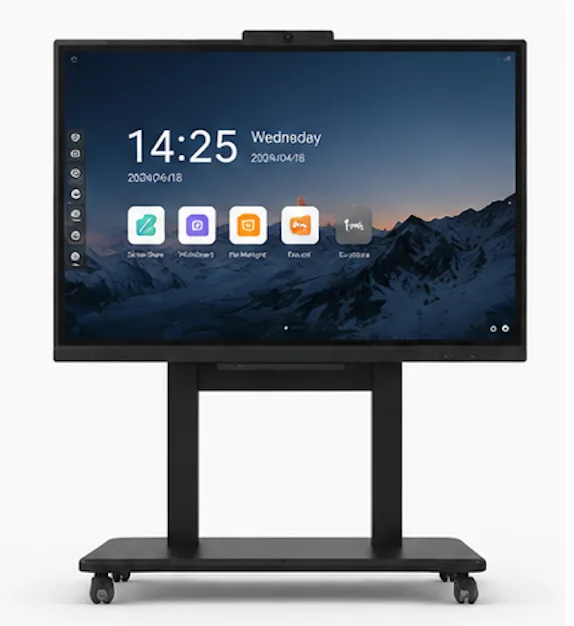
The practical answer for most fleets is a panel that gives you both: Android for the everyday board, with an OPS slot when a full Windows desktop is required. You manage the Android side through MDM and the Windows side through your existing tools. Here's a look at how a dual Android and Windows system works in practice.
What to check before you buy
If you're the person who'll inherit the fleet, ask these questions before the order goes in:
- Does the panel support standard MDM? If it only works with a proprietary app, you're locked in.
- Can you lock down settings per room? You don't want a teacher resetting the Wi-Fi on a shared panel.
- How do firmware updates roll out? Over-the-air, or by USB stick one panel at a time? We covered the update path in our guide on updating smart board software.
- Is there a management dashboard, and does it scale? Managing 5 panels is not the same as managing 500.
- What happens when the OPS module is added? Does the Windows side fall under your normal PC management?
If you're deploying panels across multiple rooms or buildings, also think about the rollout itself — installing multiple panels across offices is its own planning problem, and it's easier to get right when the management side is already worked out.
How Lonton panels fit into your fleet management
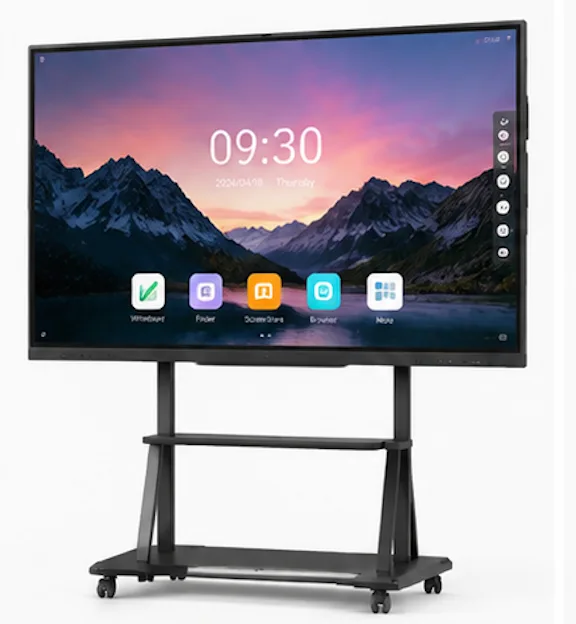
Lonton's interactive flat panels run Android 13 with a clean, lockable system, so they drop into standard Android MDM tools your IT team already knows. Each panel has an OPS slot for Windows 11 Pro, which means the computing side slots into your existing Windows management — Group Policy, Intune, imaging — without any new tooling. That dual approach is why schools and enterprises can roll out a building's worth of panels without hiring a specialist to babysit each one.
If you're planning a multi-panel deployment and want to talk through the management side — MDM, updates, lockdown and rollout — contact us and we'll walk through what your setup needs. You can also see the interactive flat panel range to spec panels with the right OS and OPS configuration.
FAQ
Can interactive flat panels be managed remotely?
Yes. Through Android MDM tools, and through Windows management tools when an OPS module is installed, admins can push updates, lock settings and reboot panels from a dashboard.
Do I need an OPS module for remote management?
No. The built-in Android system can be managed remotely through MDM. An OPS module is for when you need a full Windows desktop and want to manage it through your existing Windows tools.
What is MDM for interactive flat panels?
Mobile device management (MDM) is software that lets IT admins push apps and updates, lock settings, and monitor a fleet of Android-based panels from one dashboard.
How do firmware updates work?
On quality panels, firmware updates roll out over-the-air, so one admin can update every panel at once instead of walking to each unit with a USB stick.
Can I lock a panel so teachers can't change the settings?
Yes. Most Android panels support per-device lockdown of brightness, volume, Wi-Fi and input settings through MDM.