
 English
Dual System Android Windows Smart Board Explained (2026)
If you are researching dual system Android Windows smart board options, you have probably already figured out the basic idea: one display runs both Android and Windows, and you switch between them depending on what you are doing. Android for quick tasks — opening a PDF, launching a whiteboard app, browsing a webpage. Windows for the heavy stuff — running PowerPoint with custom fonts, joining a Teams call with all your plugins, opening that legacy software your IT department has been using since 2012.
That part is straightforward. What is less obvious is that "dual system" means different things depending on the hardware architecture. And that difference changes how the board fits into your IT environment.
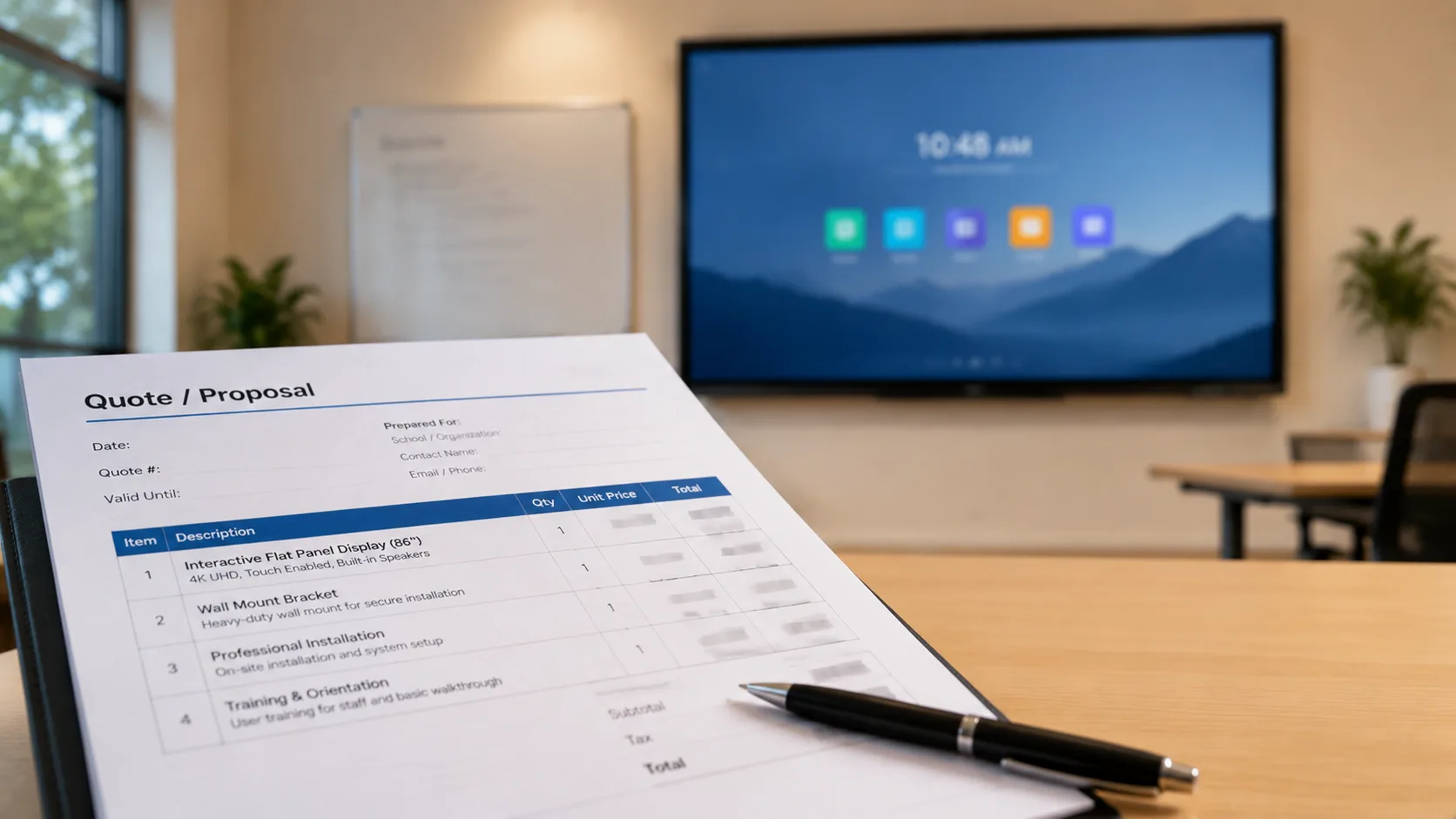
Two Ways to Do Dual-System — and They Are Not the Same
The first version is the one most people picture: the display itself has both an Android system-on-chip and a Windows computer built into the same chassis. Tap the screen, switch input sources, and you are in the other OS. No cables, no dongles, no external boxes. It is clean, it is simple, and it means anyone walking into the room can use the board without calling IT.
The second version uses an OPS slot — an Intel-based Windows module that slides into a dedicated port on the side of the display. The Android system runs on the display's own processor. The Windows module sits in the slot like a cartridge, connected directly to the display's internal bus, so there is no HDMI cable or separate power brick. It is still "one board," but Windows is on a removable module that can be upgraded or replaced independently.
You might be wondering — which one should I go with? The answer depends on who is managing this thing after it is installed.
If your IT team wants to be able to upgrade the Windows hardware in three years without replacing the whole display, the OPS slot is the smarter path. You swap the module and keep the panel. If you value simplicity above everything — fewer parts, fewer people involved, fewer things that can go wrong — the all-in-one approach wins.
What Nobody Tells You About Software Updates
Someone has to keep both operating systems updated. That is the part the sales sheet does not mention.
Android updates on interactive displays are not like phone updates. They do not come from Google. They come from the manufacturer, and the manufacturer has to adapt each Android release to work with the display's specific touch controller, resolution, and hardware drivers. Some manufacturers push updates regularly. Others build one firmware image, ship it, and move on to the next hardware generation.
For the Windows side, the question is simpler — it is Windows. Your IT team can push updates the same way they do for every other Windows machine in the building. But the OPS module itself also needs occasional firmware updates from the display manufacturer to keep the touch and display drivers in sync. Ask about this before you buy. A board that works perfectly on day one can develop touch lag six months in if the manufacturer does not maintain its driver stack.
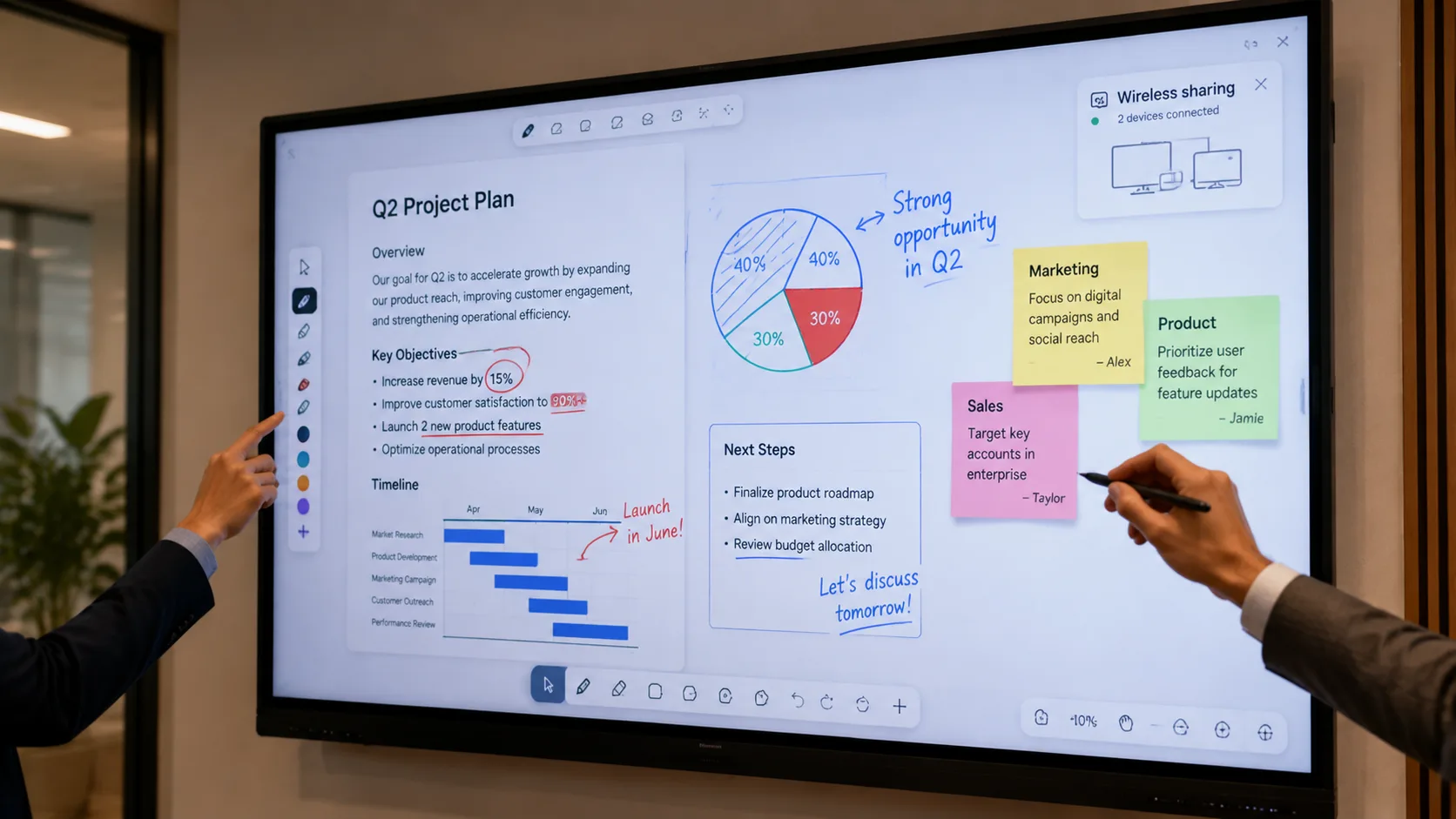
What Changes When You Actually Use It Day to Day
On paper, dual-system sounds like the best of both worlds. In practice, the experience depends on how smoothly the switch happens.
Some boards make you tap through a menu — select input source, wait for the OS to hand off, hope the touch driver reconnects on the first try. Others handle the transition in under a second, as if you are just alt-tabbing between windows on a laptop. The difference is not the operating systems themselves. It is how the manufacturer wrote the layer that sits between them.
Think about what this looks like in a real meeting. Someone is presenting from Windows — full slide deck, embedded video, live annotations. A colleague walks up to the board and wants to pull up a PDF from the Android side. If the switch takes five seconds and the touch calibration drifts, the meeting loses momentum. If it is instant, nobody even notices it happened. That moment is the difference between a board people use and a board people avoid.
You might be wondering — does the Android side actually get used? In a lot of rooms, the answer is yes — but not for the reasons people expect. The real draw is speed. Walking into a room, tapping the board, and immediately having a whiteboard open — no booting, no logging in, no waiting for Windows Update to finish. That is what Android does well. Windows is for the scheduled presentation with all the prep work. Android is for the five-minute huddle that was not on anyone's calendar.
As a professional manufacturer, LonTon produces dual system Android Windows smart board configurations for buyers across commercial and education environments. Our panels support both integrated dual-OS and OPS-slot architectures, so the choice is not made for you — it is made with you, based on your IT environment and how you plan to manage the hardware over its lifecycle. Both Android and Windows firmware receive ongoing maintenance, not just a one-time image.
What Should You Actually Ask a Manufacturer?
Three things:
First, update policy. How often does the Android firmware get patched? Is there a changelog? If the answer is "the board ships fully functional," that means the manufacturer treats firmware as a one-time ship decision — not an ongoing commitment.
Second, the Windows module architecture. Is it OPS-based or is the Windows hardware embedded in the display chassis? Either is fine — the question is whether it matches how your IT team works. A school district that replaces equipment on a five-year cycle may want the OPS slot. A corporate office that wants one SKU and zero decisions may want the embedded version.
Third, the switch experience between Android and Windows. Ask for a video demo of the OS handoff before you buy — not a polished marketing clip, but a real walkthrough of someone switching from a Windows PowerPoint to the Android whiteboard and back. Pay attention to how long it takes and whether the touch calibration holds. LonTon provides this kind of walkthrough for buyers who ask — an actual screen recording of the handoff, not a highlight reel. If a manufacturer does not have a demo ready, that tells you something. If they do and the switch is seamless, you have your answer.
You are not searching for the "best" dual system Android Windows smart board. You are searching for one that fits how your organization actually operates. The hardware matters. The update cadence matters more. And the manufacturer's experience with environments like yours matters most of all.
Click the button at the bottom right of this page and tell us about your project — the type of facility, how many rooms, and how your IT environment is structured. We will recommend a dual-system configuration that fits, not one that checks boxes on a spec sheet.