
 English
Interactive Flat Panel Power Consumption: Watts & Costs
If you're buying interactive flat panels for a school, an office or a government rollout, someone on the committee is going to ask about electricity. It's the question that comes up right after "how much does it cost." Fair enough — a 50-panel deployment is a long-term commitment.
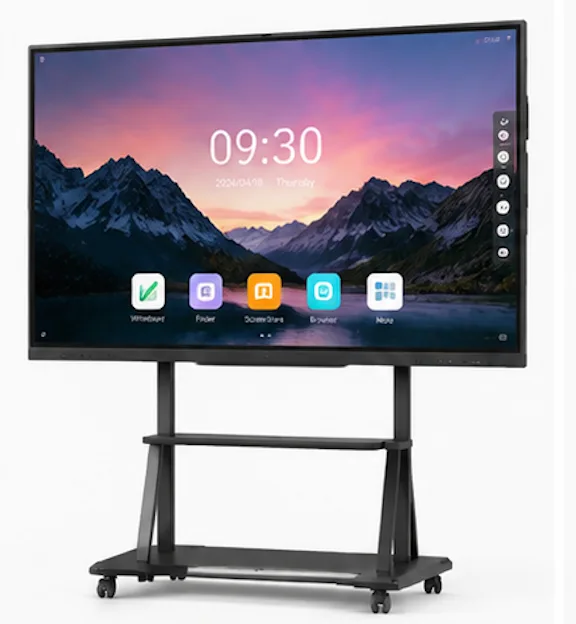
The short version: an interactive flat panel draws about as much power as a mid-size LED TV, and over a full year of classroom use it typically costs less in electricity than the lamp replacements you'd have been paying for on a projector. The longer version, with real wattage figures and a way to estimate your own running cost, is below.
How many watts does an interactive flat panel use?
A 65-inch interactive flat panel typically draws between 150 and 200 watts at full brightness during active use. Move up to an 86-inch panel and you're looking at roughly 200 to 300 watts. The largest 98-inch to 110-inch models can push past 350 watts when the backlight is running hard.
Those numbers matter less than most buyers think. An interactive flat panel is not on at full brightness all day. In a classroom, the panel sits idle through recess, lunch and most of the afternoon once the lesson moves to desk work. The practical daily draw works out far lower than the nameplate figure.
Power consumption by screen size
| Screen size | Active draw (typical) | Standby |
|---|---|---|
| 65" | 150–200 W | < 0.5 W |
| 75" | 180–230 W | < 0.5 W |
| 86" | 200–300 W | < 0.5 W |
| 98" | 280–350 W | < 0.5 W |
| 110" | 320–380 W | < 0.5 W |
Figures are industry-typical ranges; exact draw varies by panel brightness and firmware. The column that actually matters is the last one. Standby draw under 0.5 watts means the panel costs almost nothing when it's switched off but still plugged in. Cheap panels with poor power management can idle at 5–10 watts, which quietly adds up across a fleet of 50 units.
What actually drives the power draw?
Four things move the needle on an interactive flat panel's consumption.
- Screen size and backlight. Bigger glass needs more LEDs behind it. The backlight accounts for 80–90% of the total draw, which is why wattage scales almost linearly with diagonal size.
- Brightness setting. A panel running at 350 cd/m² uses noticeably less than one cranked to maximum. Most classrooms and meeting rooms don't need maximum — a lit room rarely calls for more than 350 cd/m².
- Processor load. A panel running an OPS PC slot (Windows) pulls more than one running only the built-in Android system. Video calls, screen sharing and annotation software all add load.
- Energy-saving mode. This is the big one. A panel that auto-dims after inactivity, or drops the backlight when no one is within range, can cut daily usage by a third.
Yearly electricity cost: a worked example
Let's put a number on it. Take an 86-inch panel used 6 hours a day, 200 school days a year, drawing an average of 220 watts:
- 220 W × 6 h = 1.32 kWh per day
- 1.32 × 200 days = 264 kWh per year
- At $0.15/kWh (US commercial average), that's about $40 per year per panel
A fleet of 30 panels works out to roughly $1,200 a year in electricity. That's the kind of figure a school board can actually absorb — and it's often less than the lamp replacements they were paying for on old projectors. If you're weighing that trade-off, we've broken down how interactive displays use less energy than projectors over a full lifecycle.
How to keep a panel fleet running lean
If electricity is a line item you have to defend, a few settings make a real difference across a fleet:
- Set a sensible brightness cap. Most installers leave panels at 100%. Dropping to 70–80% is barely noticeable and cuts the biggest power driver.
- Turn on auto-standby. Schedule panels to power down after school hours and weekends.
- Use the built-in Android system for daily tasks. Reserve the OPS Windows slot for jobs that genuinely need it.
- Check standby draw on samples. Before committing to a large order, ask the factory for the standby wattage. It's a fast way to spot cheap power management.
Why power draw is a build-quality signal
Power draw is also a rough proxy for build quality. A panel with a genuine LG panel and a well-tuned backlight hits its target brightness at a lower wattage than a cheap panel overdriving a third-party screen to fake the numbers. This is one reason we publish a real brightness figure (350 cd/m²) rather than a "peak" number — a panel that's honest about brightness is usually honest about the rest. The same logic applies to resolution, where we've covered why 4K has become the meeting-room standard.
How Lonton keeps panels efficient
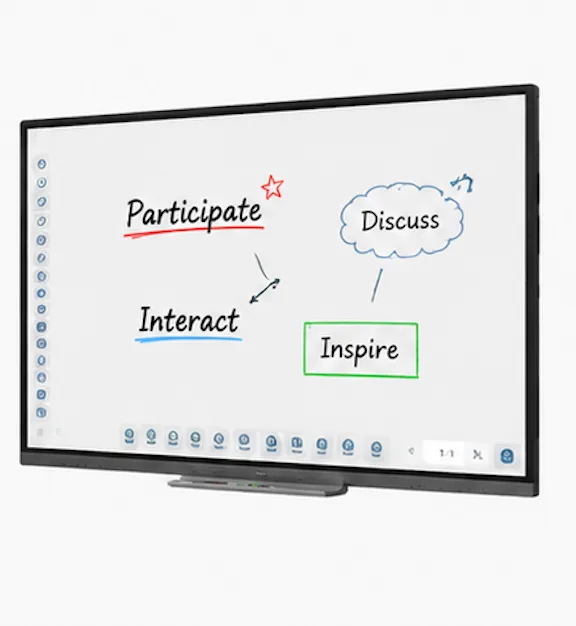
Our panels are built around genuine LG LCD panels with a tuned backlight that delivers 350 cd/m² — bright enough for a lit classroom or meeting room without wasting power. The built-in Android 13 system is lightweight, so the panel sips power in daily whiteboard and casting use; the optional OPS slot only spins up a Windows 11 Pro PC when you actually need full desktop apps. Standby draw is under 0.5 W.
If you're spec'ing panels for a school, office or government project and want the full power and brightness data — or a side-by-side estimate of your fleet's running cost — get in touch and we'll run the numbers for your exact setup. You can also browse the interactive flat panel range to see sizes from 65" to 110".
FAQ
How much electricity does a smart board use per hour?
Roughly 0.15–0.3 kWh per hour depending on size and brightness. An 86-inch panel at normal brightness is around 0.22 kWh/hour.
Do interactive flat panels use a lot of electricity?
No. They draw about the same as a mid-size LED TV and, over a full year of classroom use, typically cost $40–$60 in electricity — less than the lamp replacements on a projector.
Do smart boards use power when turned off?
Only a tiny standby draw — under 0.5 W on quality panels. That's a few cents a year.
Does the OPS module increase power use?
Yes. An OPS Windows module adds roughly 20–60 W when active, on top of the panel's own draw.
How can I lower my interactive flat panel's energy use?
Lower the brightness cap, enable auto-standby scheduling, and stick to the built-in Android system for daily tasks, reserving the OPS Windows slot for jobs that need it.