
 English
How to Use Google Meet on a Smart Board: 3 Methods (2026)
Getting Google Meet running on a meeting room display is not complicated, but the experience depends on which path you take. There are three practical ways to use google meet on a smart board — built-in browser, OPS Windows module, or casting from a laptop — and each makes sense for a different kind of room. The short answer for most setups: open Chrome on the IFP's Android OS and go to meet.google.com. That covers daily standups, one-on-ones, and quick check-ins without touching a cable. But for rooms that need breakout rooms or virtual backgrounds, the method matters. Here is how to pick the right one.
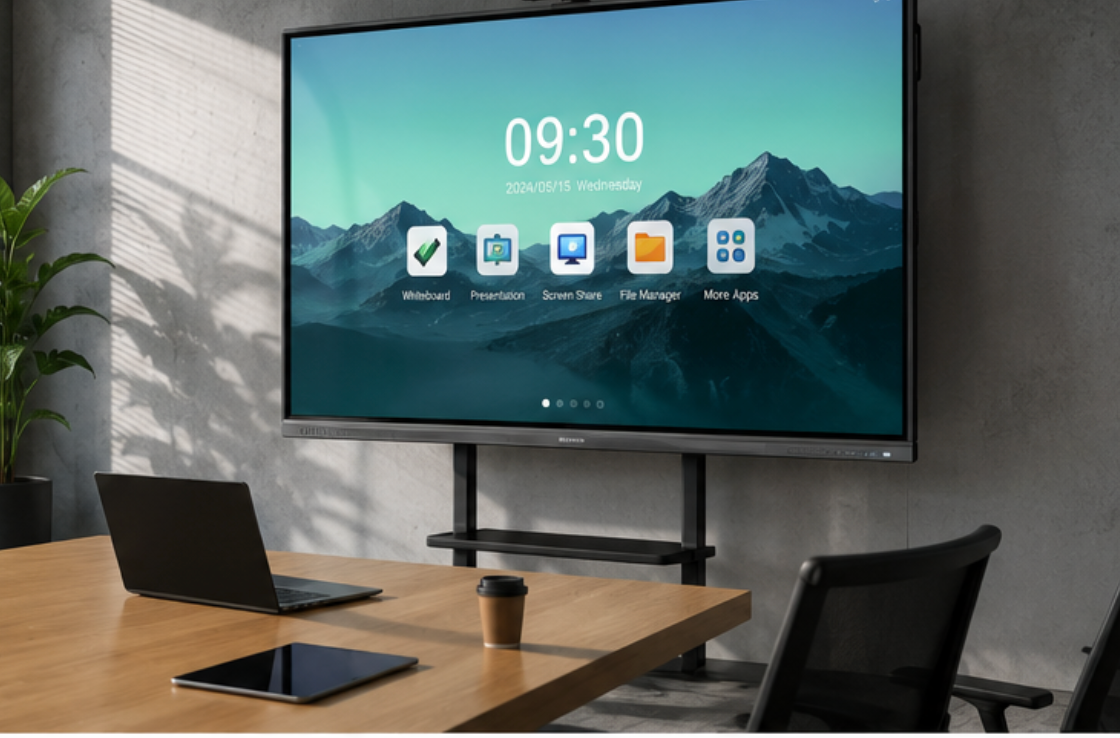
Method 1: Built-in Browser
This is the simplest path and the one that works out of the box. Open Chrome on the IFP's Android OS, navigate to meet.google.com, sign in with your Google Workspace or personal account, and join or start a meeting. Grant camera and microphone permissions when the browser prompts you, and the call begins. No installation, no external PC, no dongle — just the board doing what it was built to do.
The browser-based Google Meet experience gives you core features: screen sharing, chat, participant management, and gallery view. What you do not get are the advanced desktop-only features like breakout rooms, polls, Q&A, and background blur. For most internal meetings, those are nice to have rather than necessary, and the browser path covers the daily reality.
For meeting rooms equipped with LonTon interactive flat panels, the built-in camera and microphone array handles video and audio natively. You do not need an external webcam or USB speakerphone to start a call — the board is the conference system. This is what turns the browser method from a compromise into a genuinely fast workflow: walk in, power on, open Chrome, join the call.
Method 2: OPS Windows Module
If your IFP has an OPS slot with a Windows module installed, you get the full Google Meet desktop experience. Open Chrome or Edge and go to meet.google.com, or install the Google Meet PWA from Chrome's address bar for a desktop-app-like feel. Sign into your Google account and you gain access to background blur and virtual backgrounds, breakout rooms, polls and Q&A, and full presentation mode with desktop sharing. The IFP touchscreen also lets you annotate shared content using the board's overlay tools — marking up slides during a remote presentation becomes straightforward. For teams running formal client presentations or department-wide all-hands, this is the way to use google meet on a smart board with zero feature compromises.
The trade-off is that the OPS module needs to boot Windows, which adds startup time compared to the instant-on Android browser. For rooms where Google Meet is the primary use case and you genuinely need breakout rooms or background blur every session, the OPS path is worth the setup. For rooms where meetings are shorter and more spontaneous, Method 1 remains faster, and the extra features rarely justify the boot time.
Method 3: Cast from a Laptop
When a guest presenter walks in without access to the board's operating system, casting is the fallback that keeps the meeting moving. The simplest wireless approach: open EShare on the IFP, scan the QR code with the presenter's laptop, and the screen — Meet call included — appears on the display. EShare handles AirPlay, Google Cast, and Miracast simultaneously, so no dongle or app installation is required regardless of the guest's device.
Wired HDMI is always an option too. Connect the laptop directly and the IFP becomes a second monitor for the Meet call. Two-way touch control through EShare lets the presenter operate most apps from the IFP screen, though video conferencing platforms typically lock input to the host device, so expect to drive the meeting from the laptop either way. The real benefit of casting is that it removes the barrier for outside participants — they use their own device, their own setup, and the IFP handles display and audio.
For the cleanest daily experience, log into the IFP's browser directly and have your IT team save the Google Meet bookmark to the home screen for one-tap access. If your team frequently runs large hybrid meetings with breakout sessions, adding an OPS module is a worthwhile upgrade.
As a professional manufacturer, LonTon ships every interactive flat panel with Google Play Store access, built-in camera and microphone, and EShare pre-installed — so your team can use google meet on a smart board right out of the box, using whichever method fits the room.