
 English
Connecting a MacBook to a smart board takes about ten seconds, and you don't need a single cable or adapter.
Most interactive flat panels today support AirPlay, Apple's wireless screen mirroring protocol. Make sure your MacBook and the board are on the same WiFi network. On your MacBook, click the Control Center icon in the menu bar, select Screen Mirroring, and choose the board from the list. Your MacBook screen appears on the display instantly. That's it.
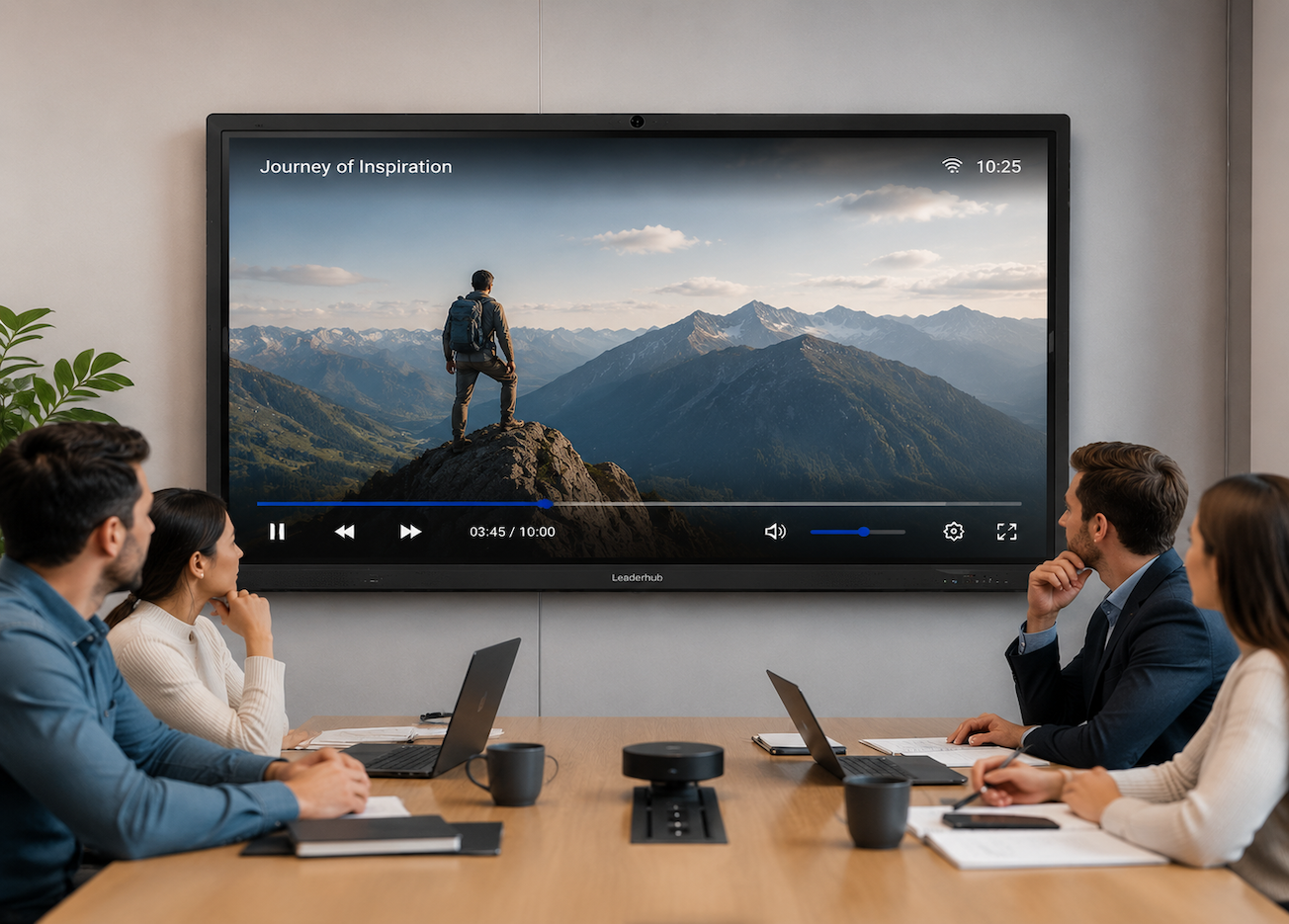
If you need a wired connection — for example, in a room without WiFi or when you're presenting sensitive content and don't want wireless transmission — you can use an HDMI cable. Modern MacBooks have USB-C ports, so you'll need a USB-C to HDMI adapter or a USB-C hub with an HDMI output. Plug the HDMI cable into the board, connect the adapter to your MacBook, and select the HDMI input on the display. The board detects the signal automatically.
For rooms where multiple people present throughout the day, connecting a MacBook to a smart board wirelessly is the clear winner. No one has to hunt for the right adapter, no one forgets their dongle, and switching presenters takes seconds instead of a cable handoff. The board remembers the last few devices that connected, so repeat visitors connect their MacBook to the smart board even faster on their second visit.

If your team runs on MacBooks and you want meeting rooms where connecting takes seconds instead of a cable hunt, we can help. LonTon, as a professional manufacturer, builds interactive flat panels with AirPlay, Google Cast, and Miracast all built in — whatever device walks through the door, it just works.